Online account
Why go online?
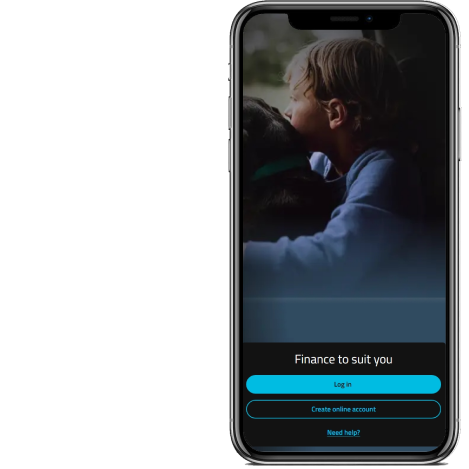
What you can do
- 24/7 access to your agreement
- Update your details
- Get a settlement amount
- Quickly make payments
- Change your payment date
Getting started
Already registered for an online account? Log in and take a look around.

How to guides
It's easier to manage your account yourself online, all in one place.
Help getting online
-
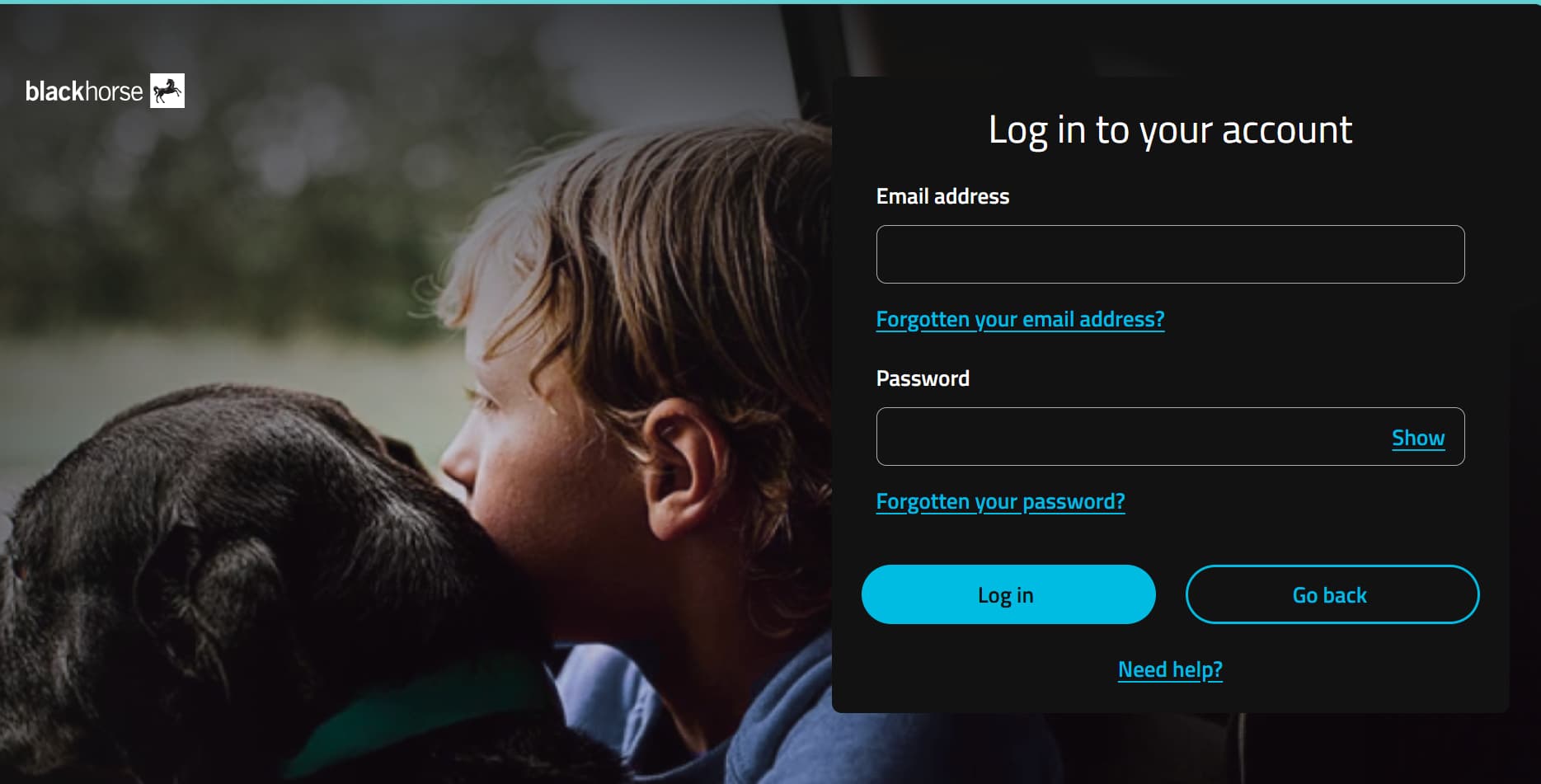
1. Go to https://customerportal.blackhorse.co.uk/ and select 'Log in'

2. Add your email address and password and select log in
-
1. Go to https://customerportal.blackhorse.co.uk/ and select 'Create online account'
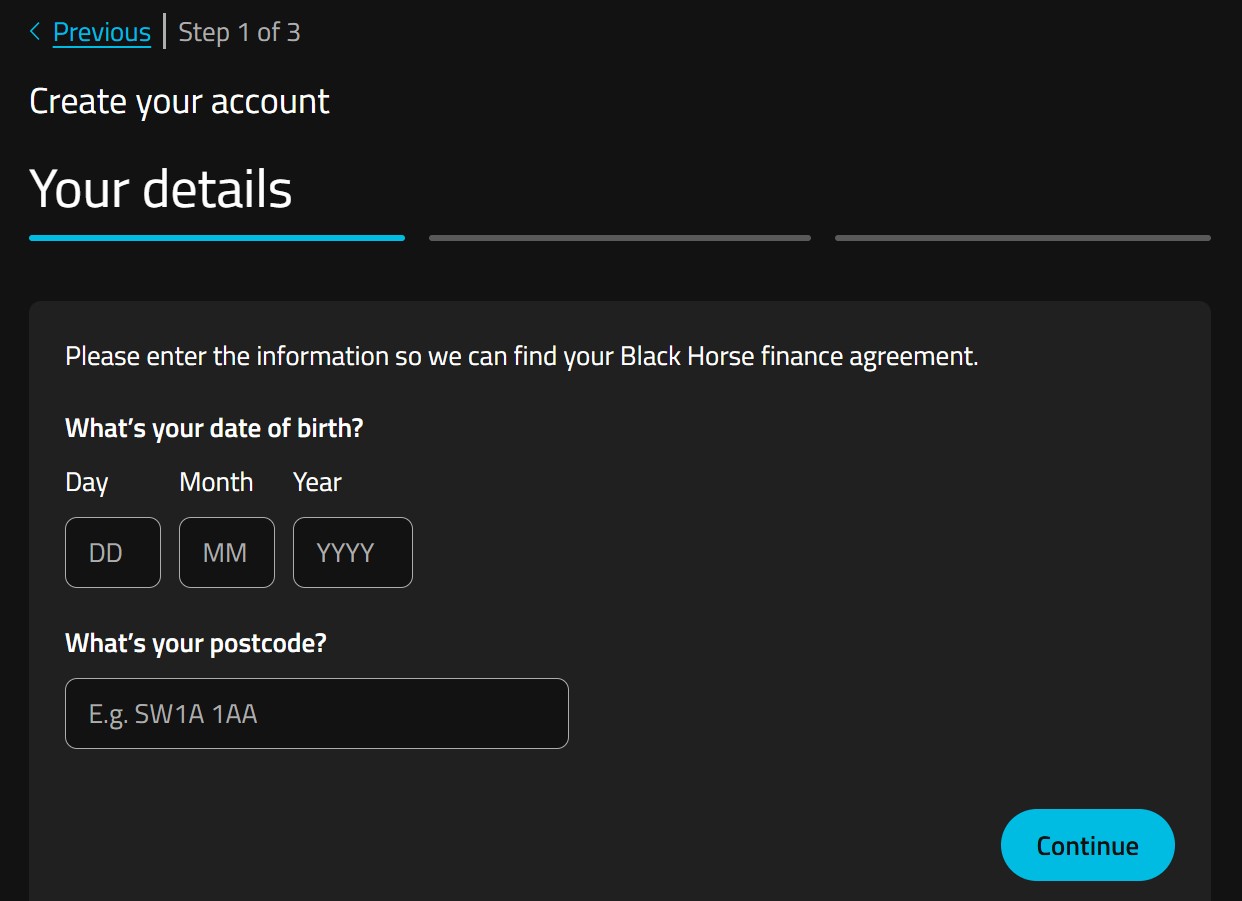
2. Add your date of birth and postcode so we can find your agreement.
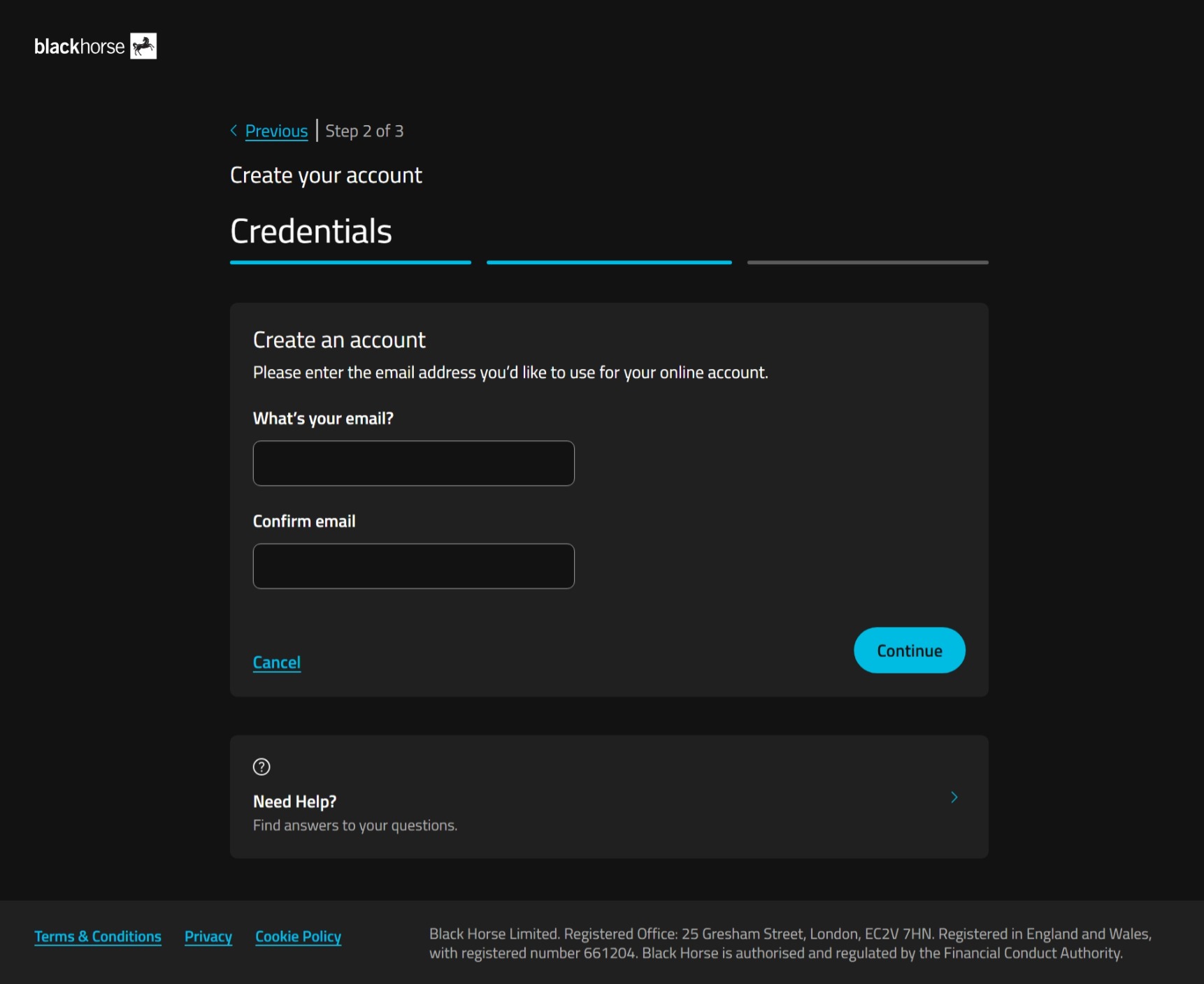
3. Type in your email address, confirm it, and select continue.
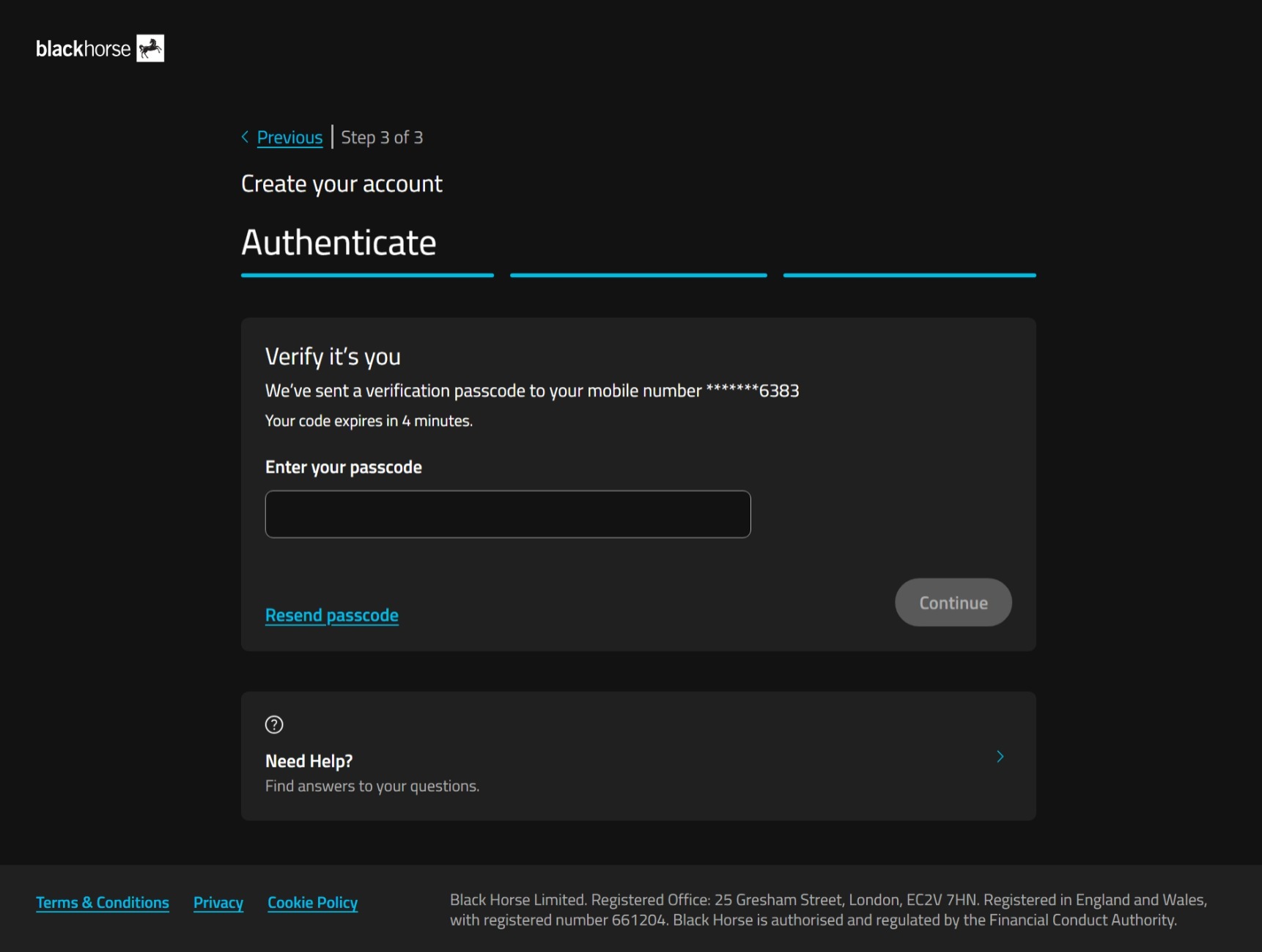
4. We'll send a one-time passcode to the phone number you gave us when you set up your agreement.
Enter the passcode, and select continue.
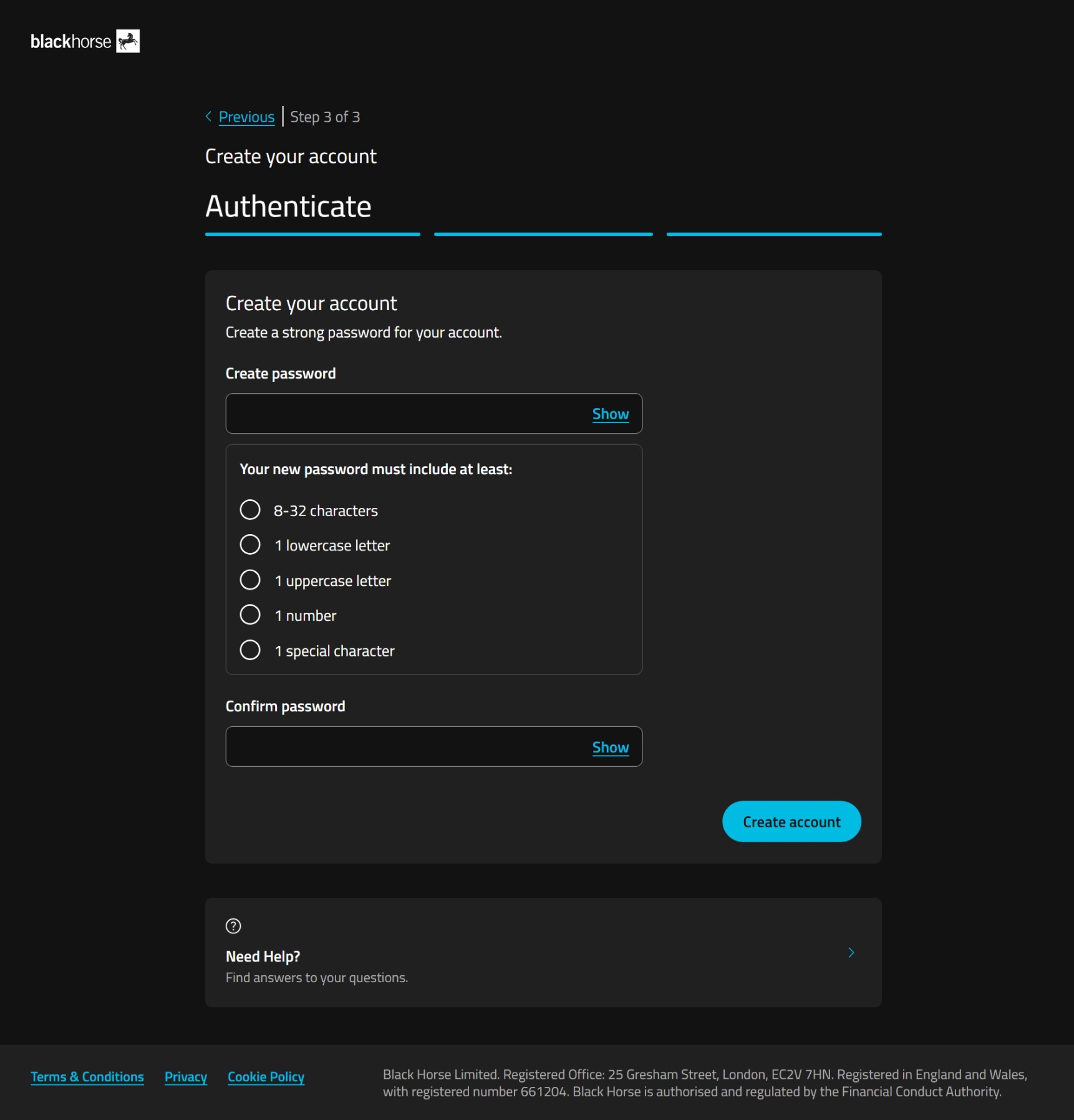
5. Choose a password for your online account.
Your password must include at least:
- 8-32 characters
- 1 lowercase letter
- 1 uppercase letter
- 1 number
- 1 special character.
Select create account.
If you're struggling to set your password, you could use a password generator, or try using 3 random, unconnected, words together with the other password requirements.
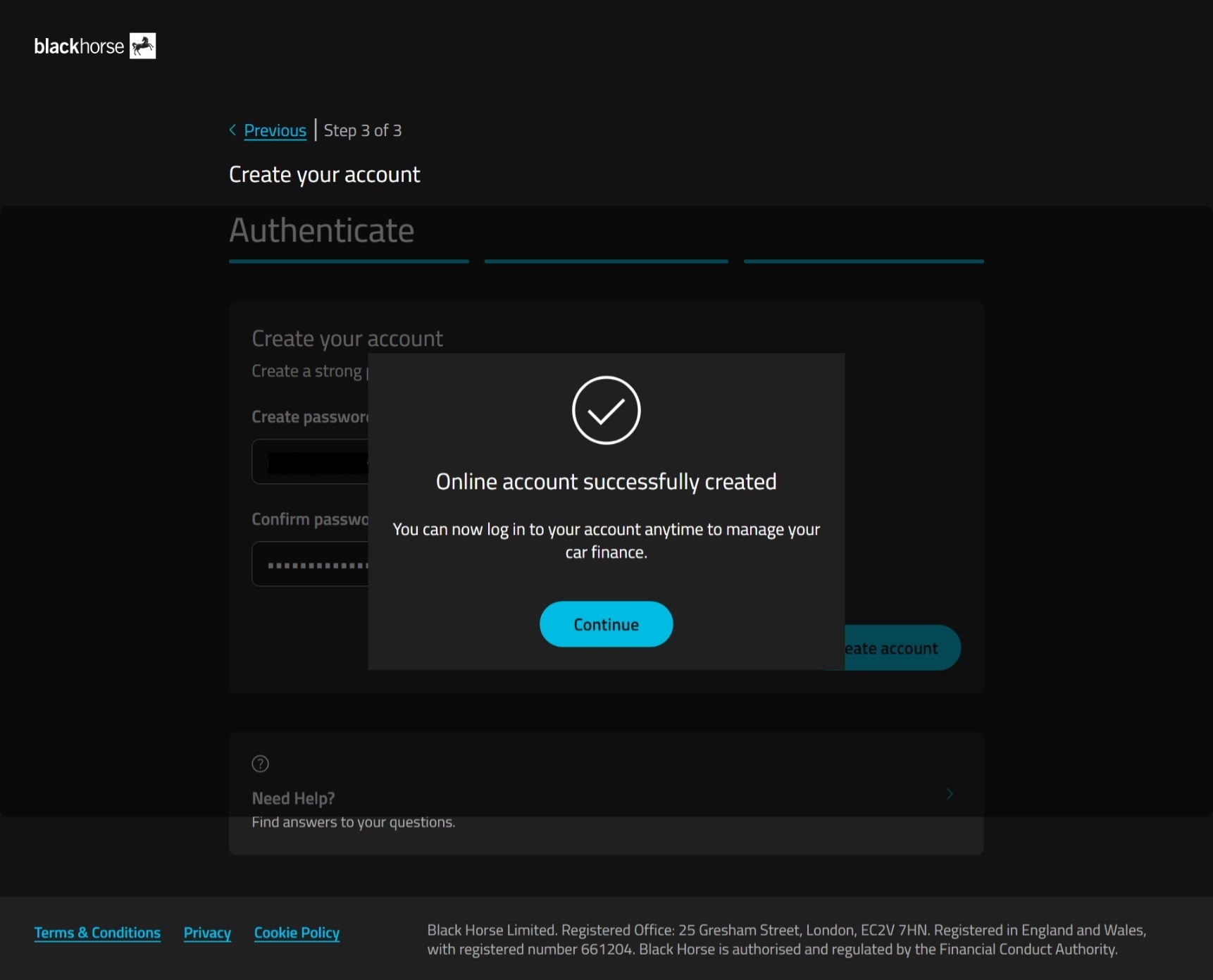
6. You've created your online account. Now you can log in with your email and password.

Issues logging in or creating an account?
Our help centre has answers to common questions.