Check your balance
Step 1 - log in or create an online account
(if you don't already have one)
-
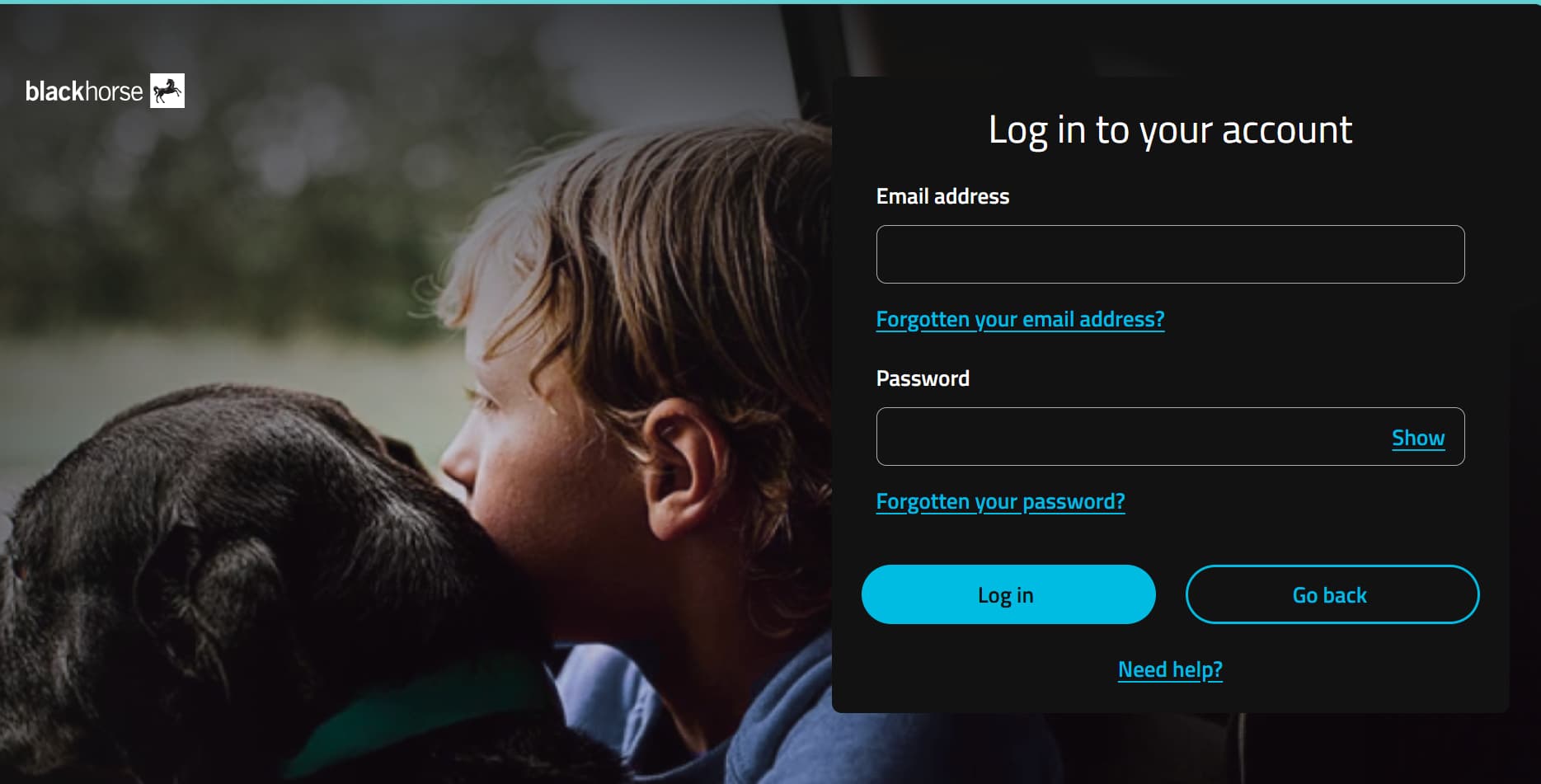
1. Go to https://customerportal.blackhorse.co.uk/ and select 'Log in'

2. Add your email address and password and select log in
-
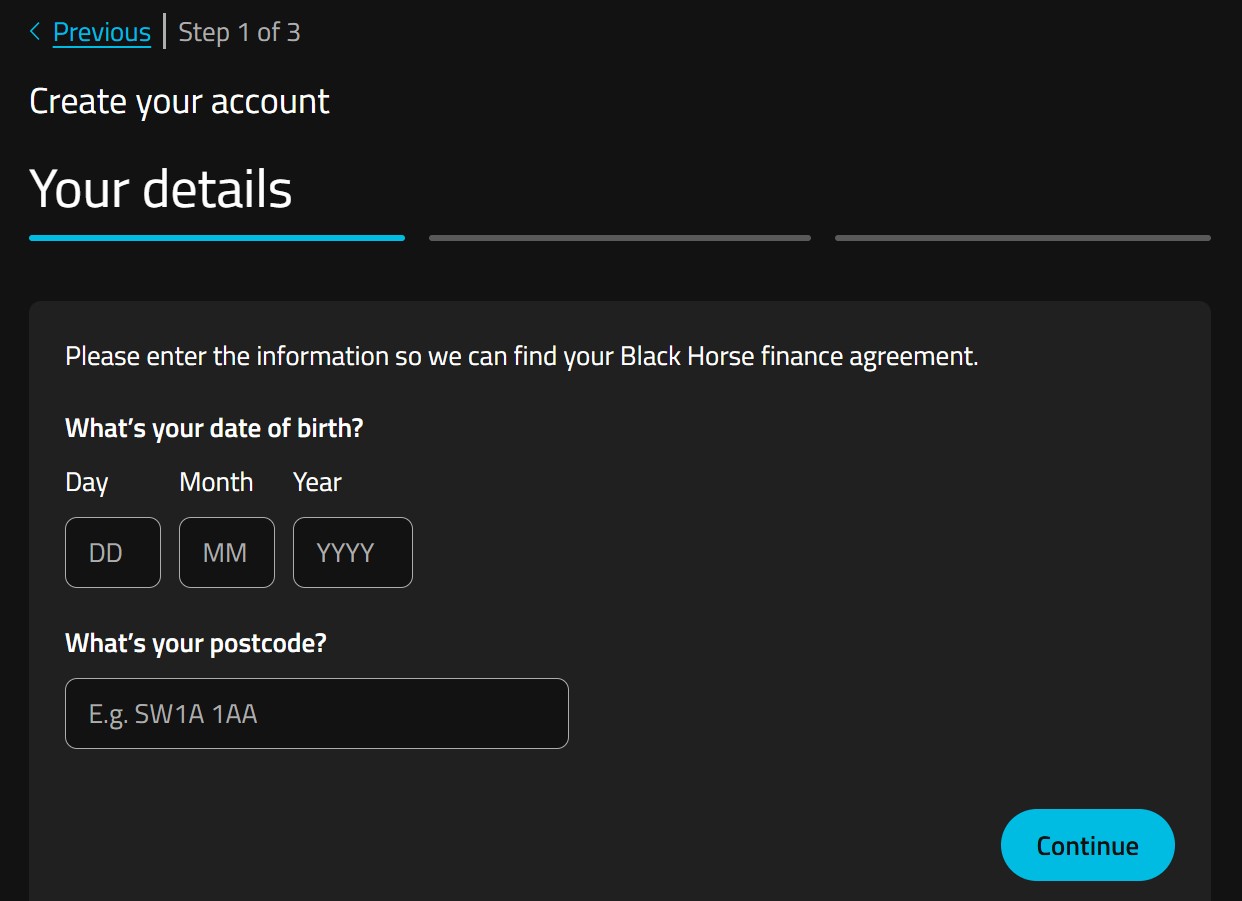
1. Go to https://customerportal.blackhorse.co.uk/ and select 'Create online account'
2. Add your date of birth and postcode so we can find your agreement.
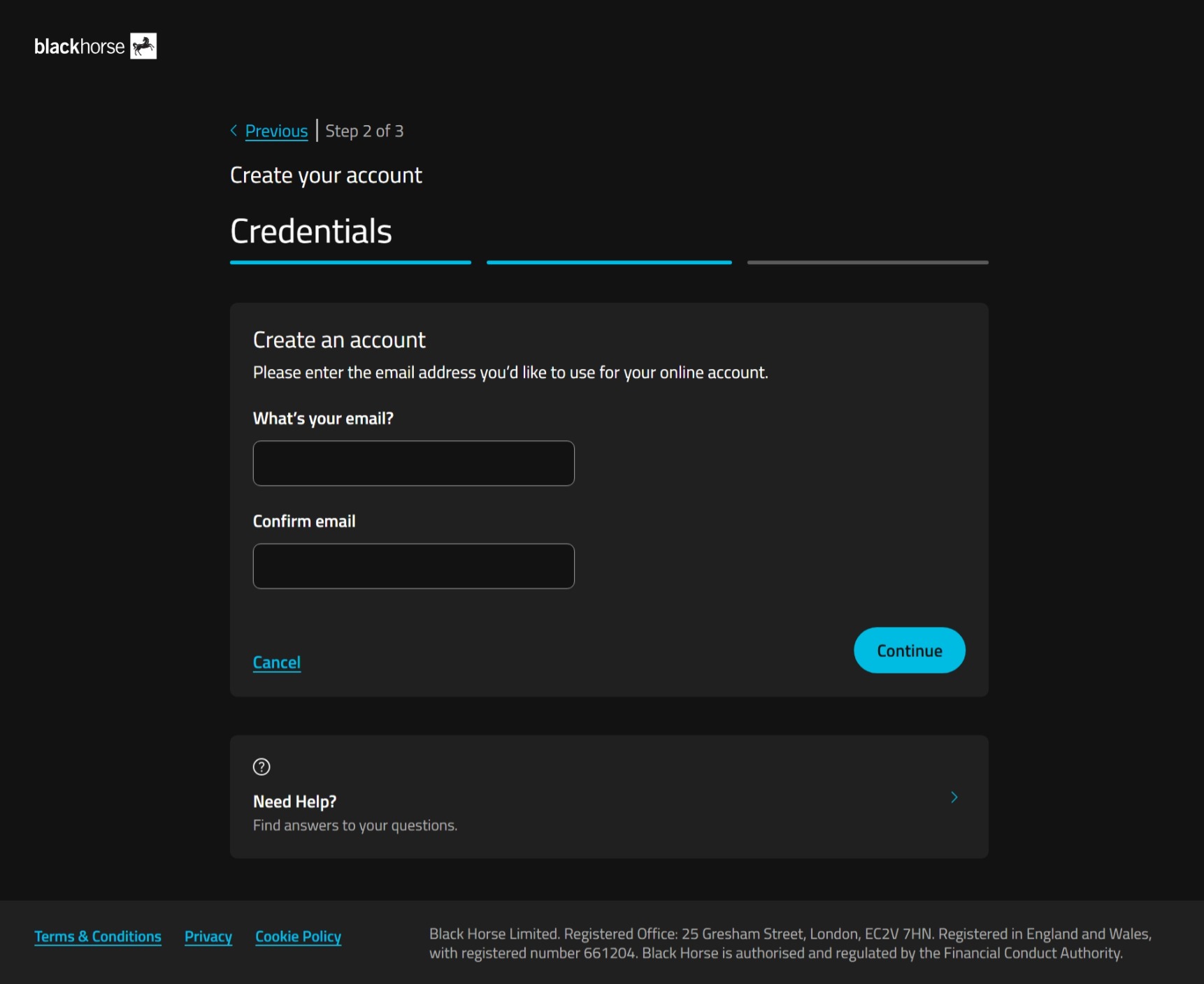
3. Type in your email address, confirm it, and select continue.
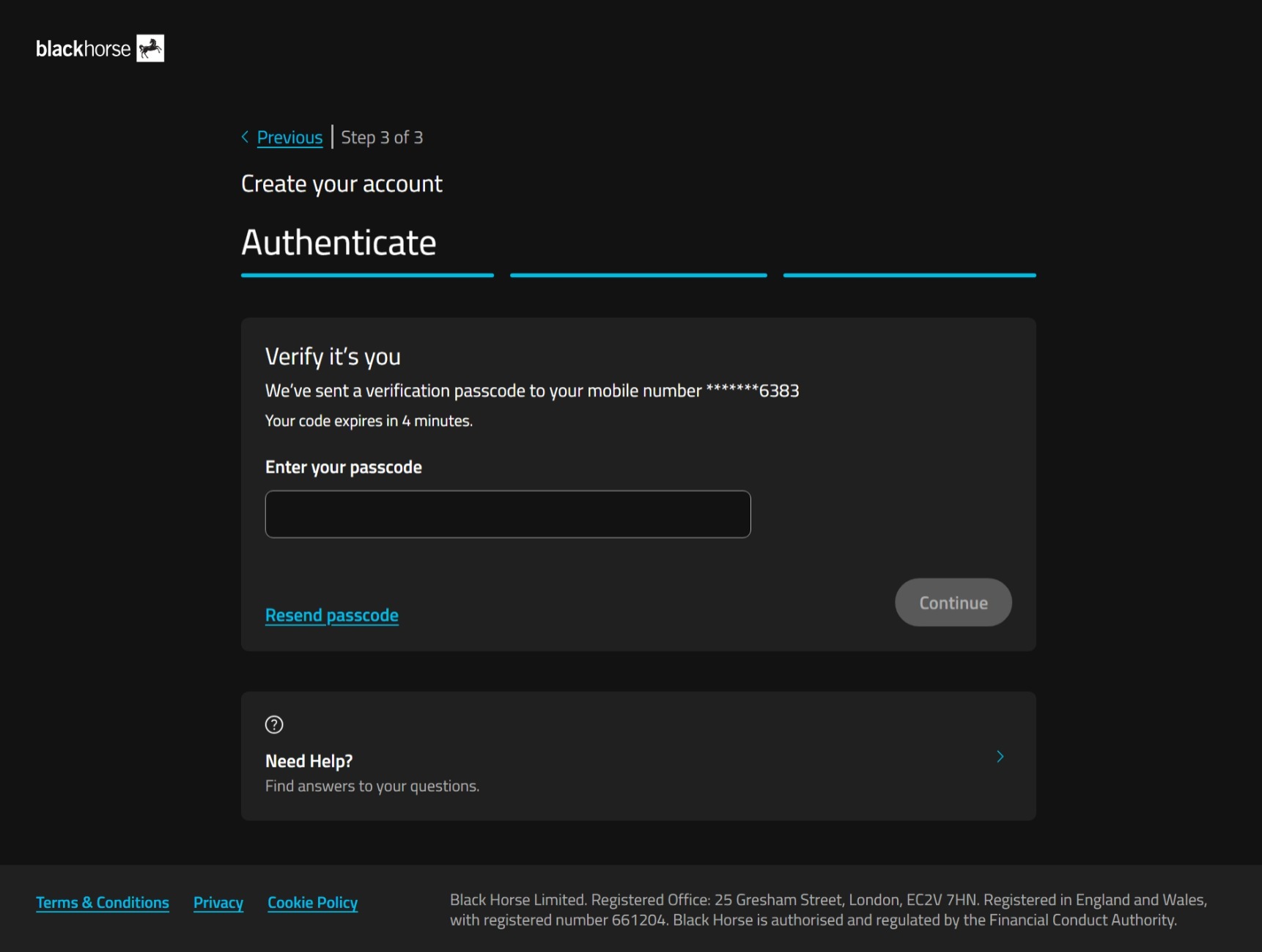
4. We'll send a one-time passcode to the phone number you gave us when you set up your agreement.
Enter the passcode, and select continue.
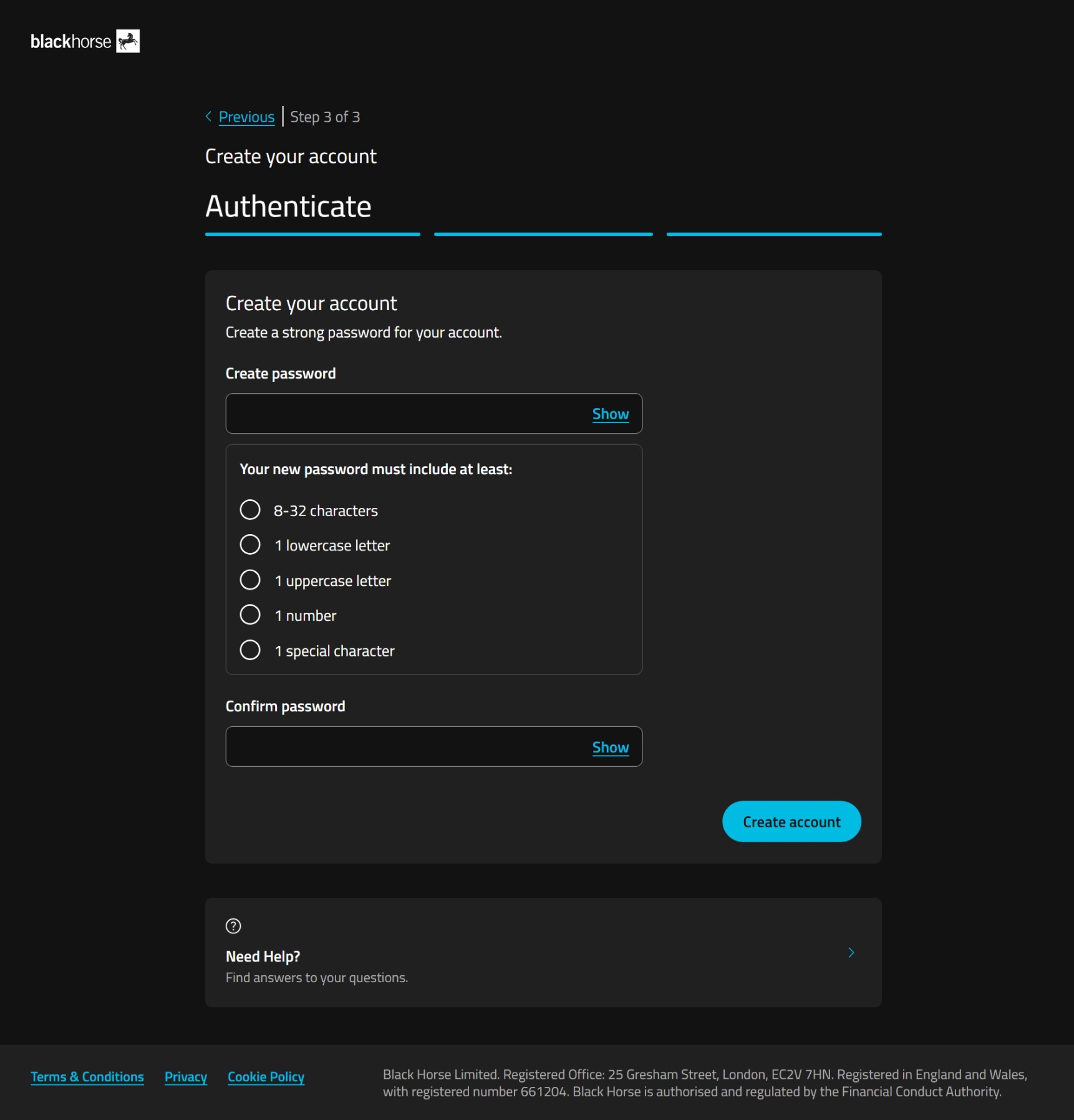
5. Choose a password for your online account.
Your password must include at least:
- 8-32 characters
- 1 lowercase letter
- 1 uppercase letter
- 1 number
- 1 special character.
Select create account.
If you're struggling to set your password, you could use a password generator, or try using 3 random, unconnected, words together with the other password requirements.
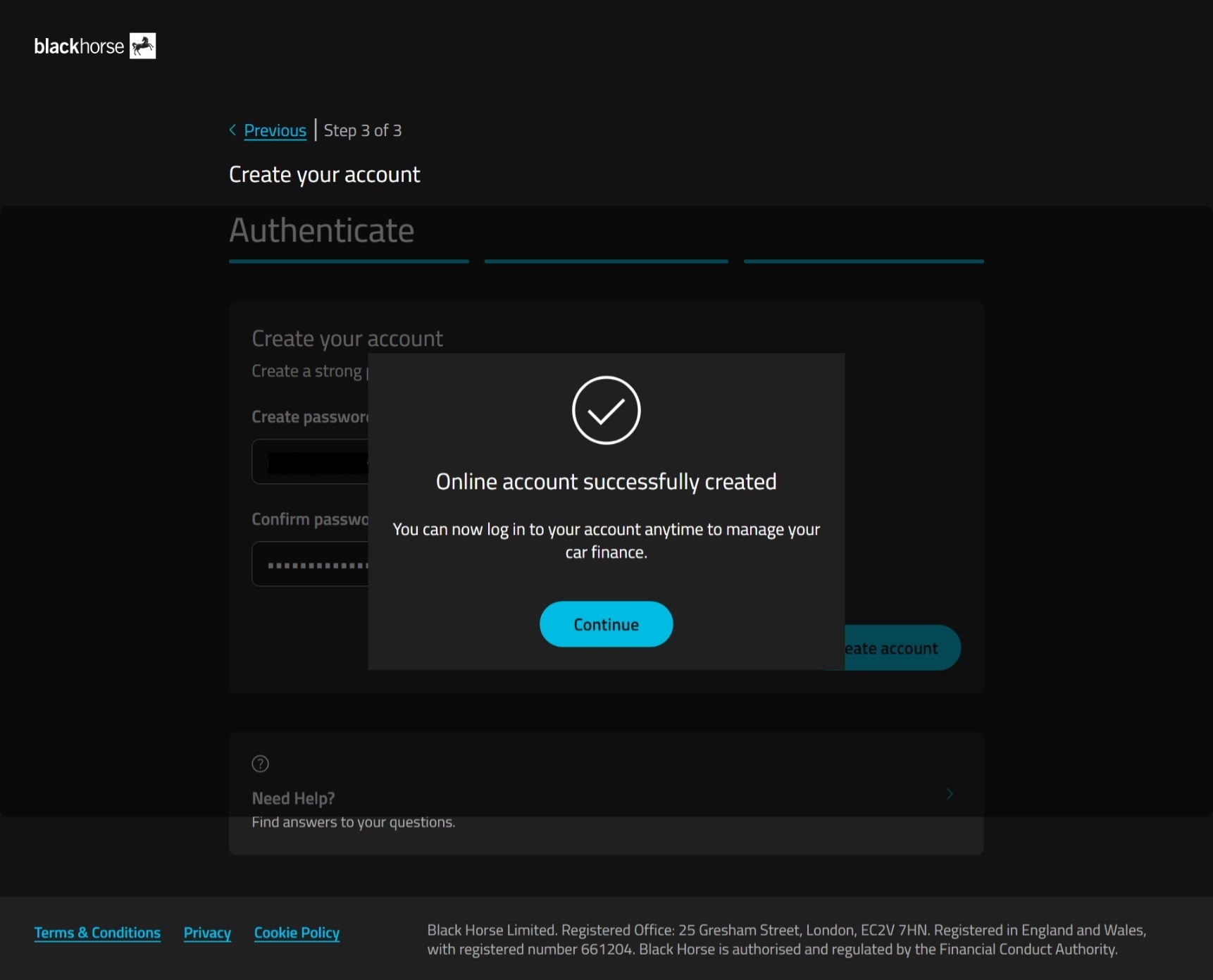
6. You've created your online account. Now you can log in with your email and password.
Step 2 - check your balance
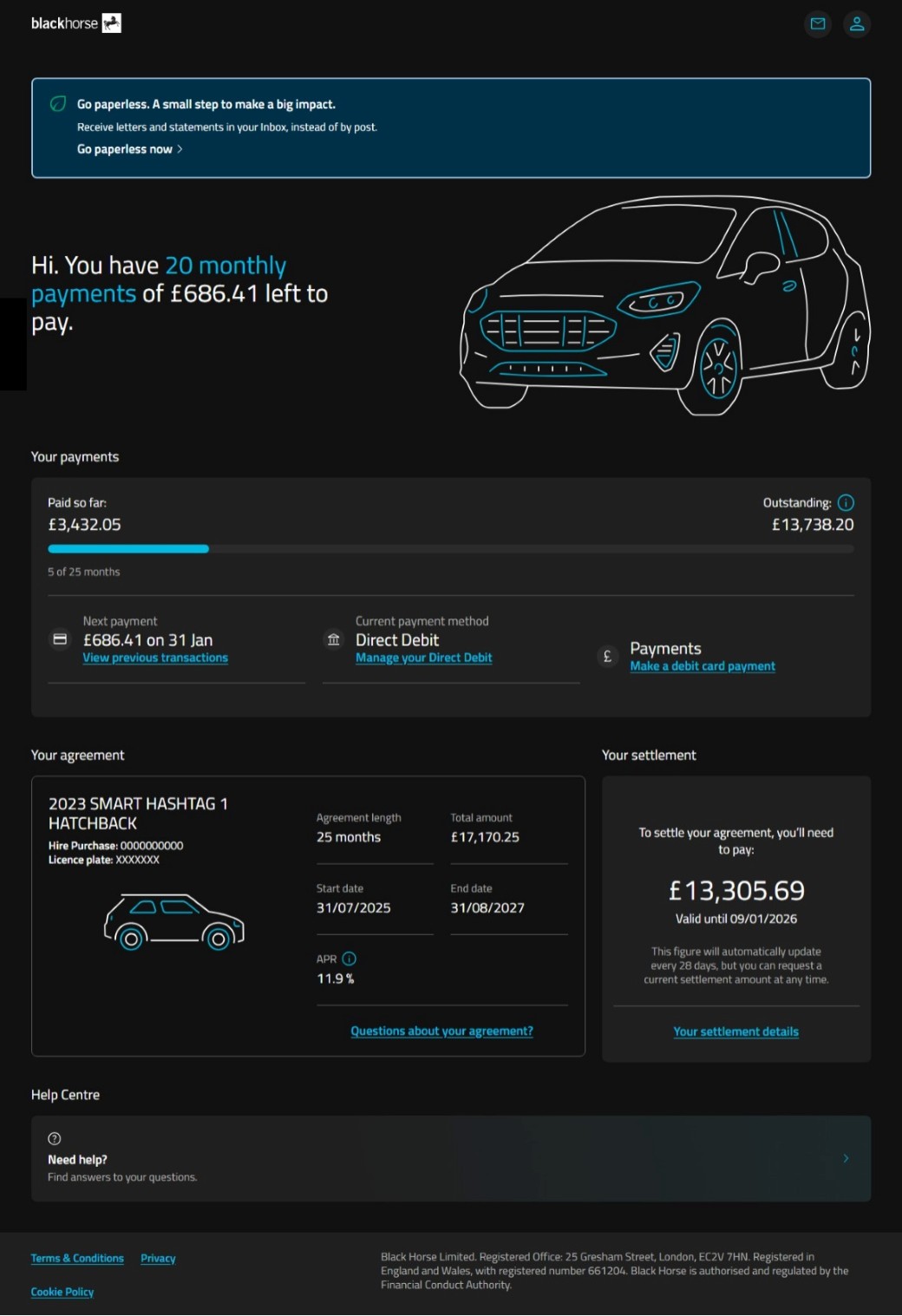
You can see your balance on your account screen.
You can also see:
- How many payments you have left
- How much your next payment is
- The date of your next payment.
Still need help?
If you've not found what you need, you can get in touch.