Change your payment date
If your Direct Debit is due in the next five working days
You can't change your payment date in this timeframe.
Just follow these instructions and update it after your Direct Debit has been taken.
Information on changing your payment date
If you have a PCP agreement, you can only change your payment once in the agreement.
If you have an HP agreement, you can change your payment date once every 12 months.
Be aware that you could pay more, depending on your new payment date. The daily interest you would have been charged between your old and new payment date will be added to your agreement, and paid at the end of your agreement.
Step 1 - log in or create an online account
(if you don't already have one)
-
1. Go to https://customerportal.blackhorse.co.uk/ and select 'Log in'

2. Add your email address and password and select log in
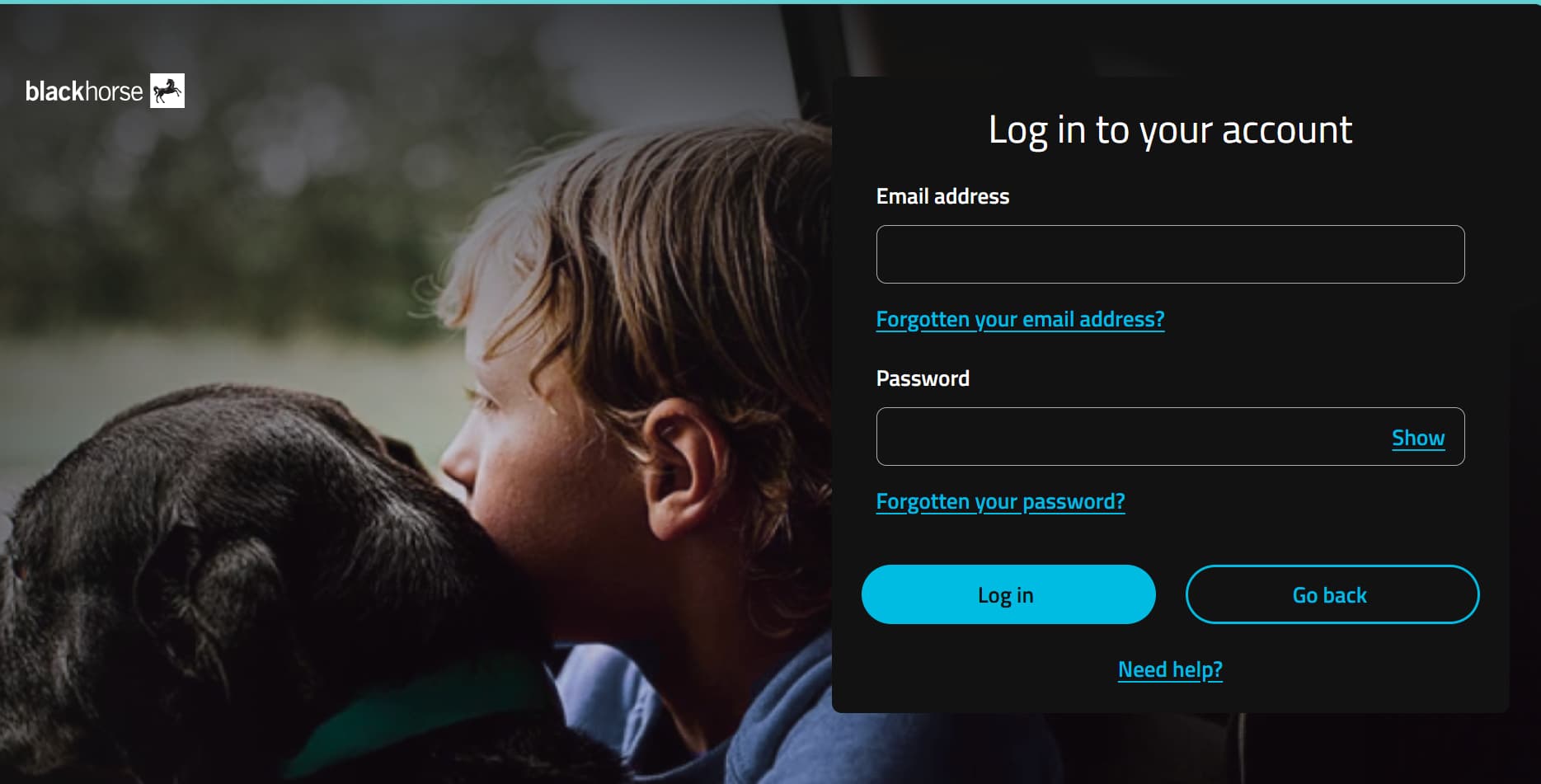
-
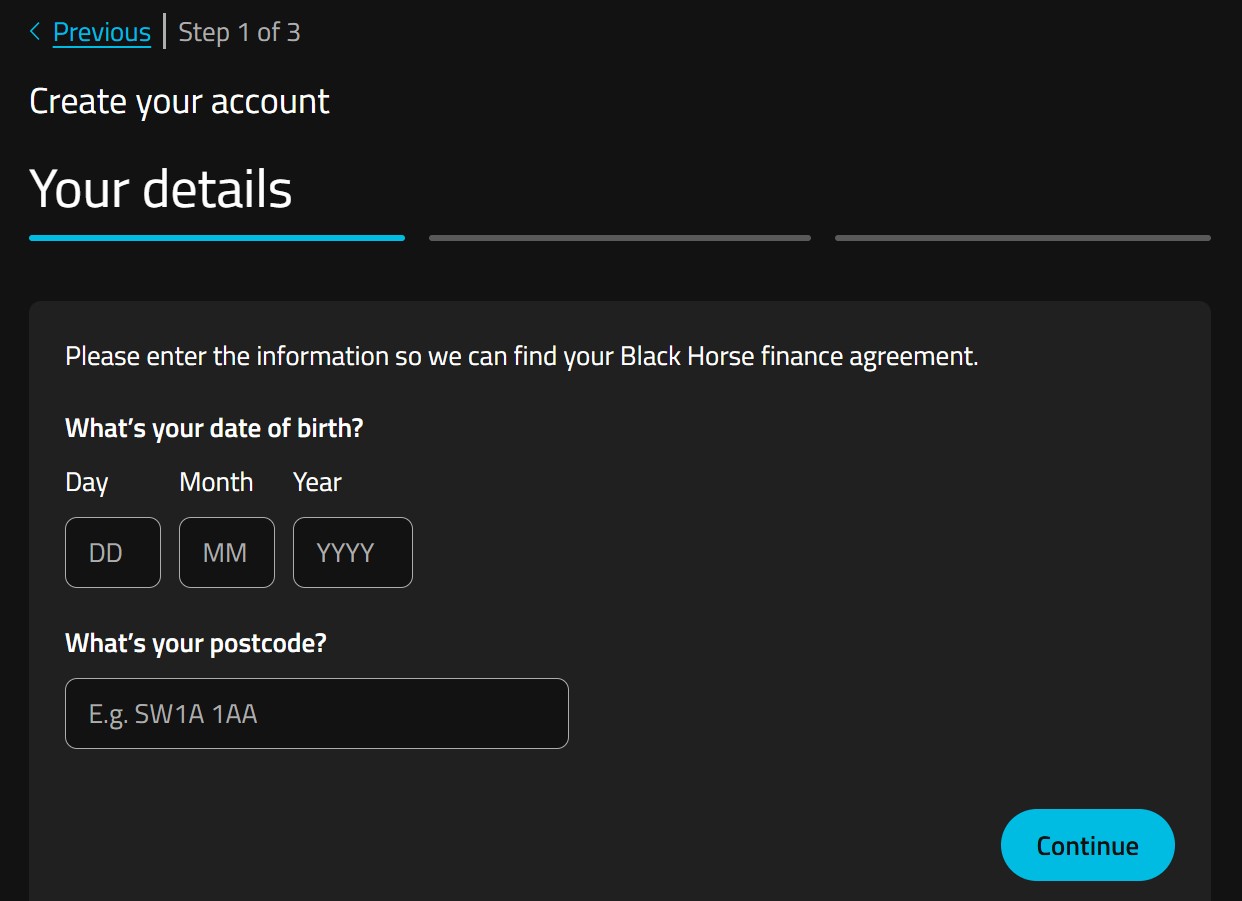
1. Go to https://customerportal.blackhorse.co.uk/ and select 'Create online account'
2. Add your date of birth and postcode so we can find your agreement.
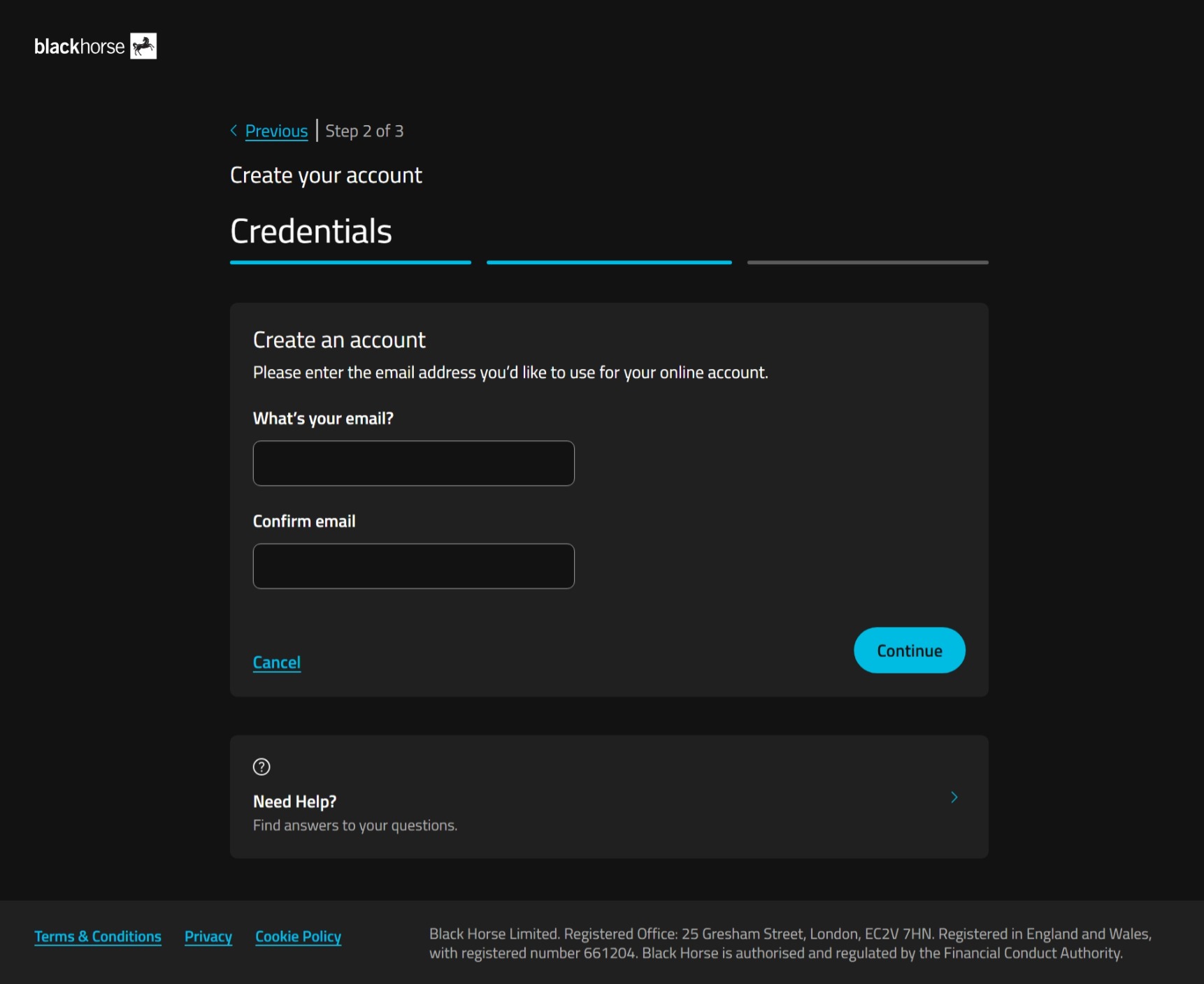
3. Type in your email address, confirm it, and select continue.
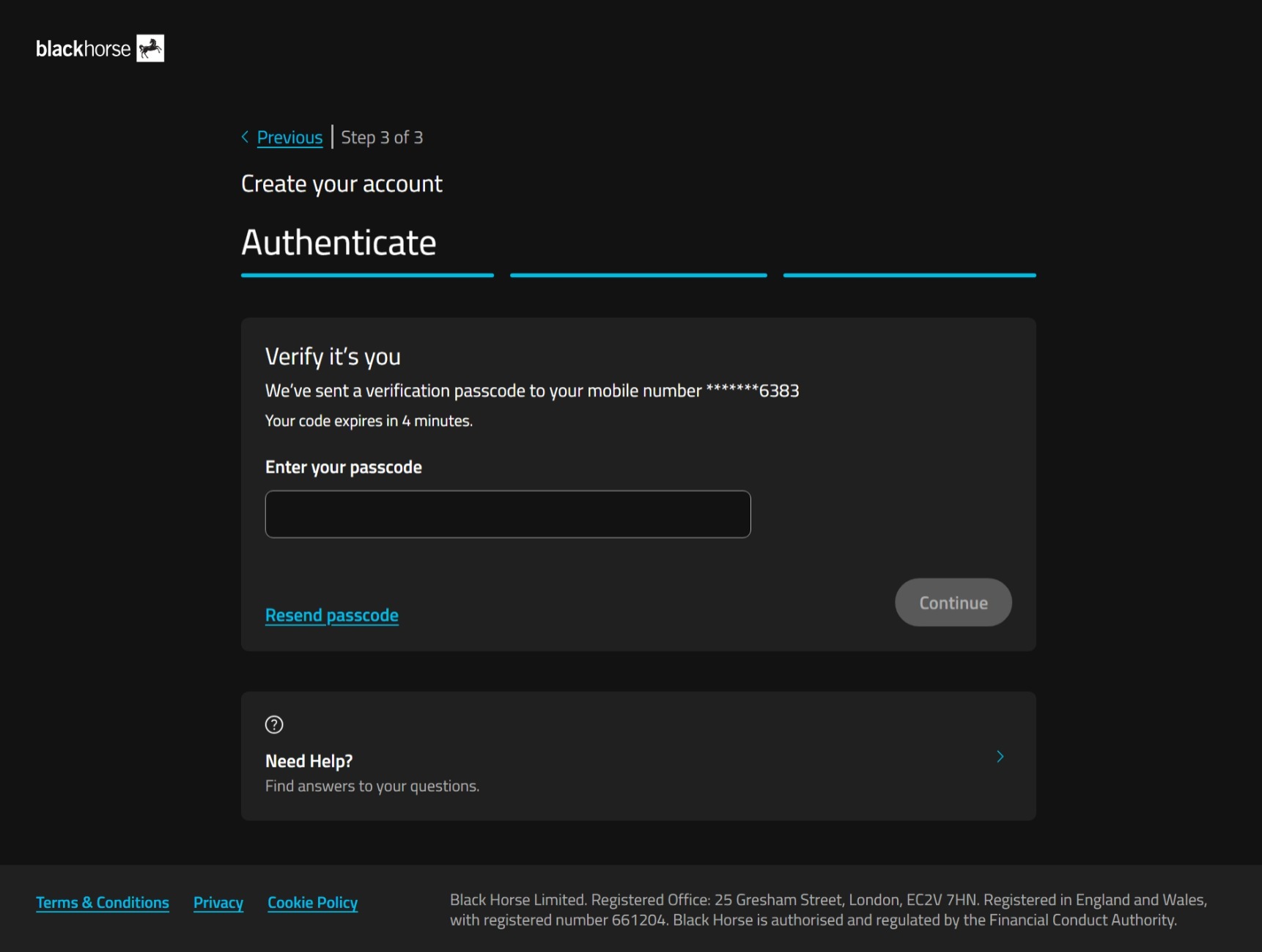
4. We'll send a one-time passcode to the phone number you gave us when you set up your agreement.
Enter the passcode, and select continue.
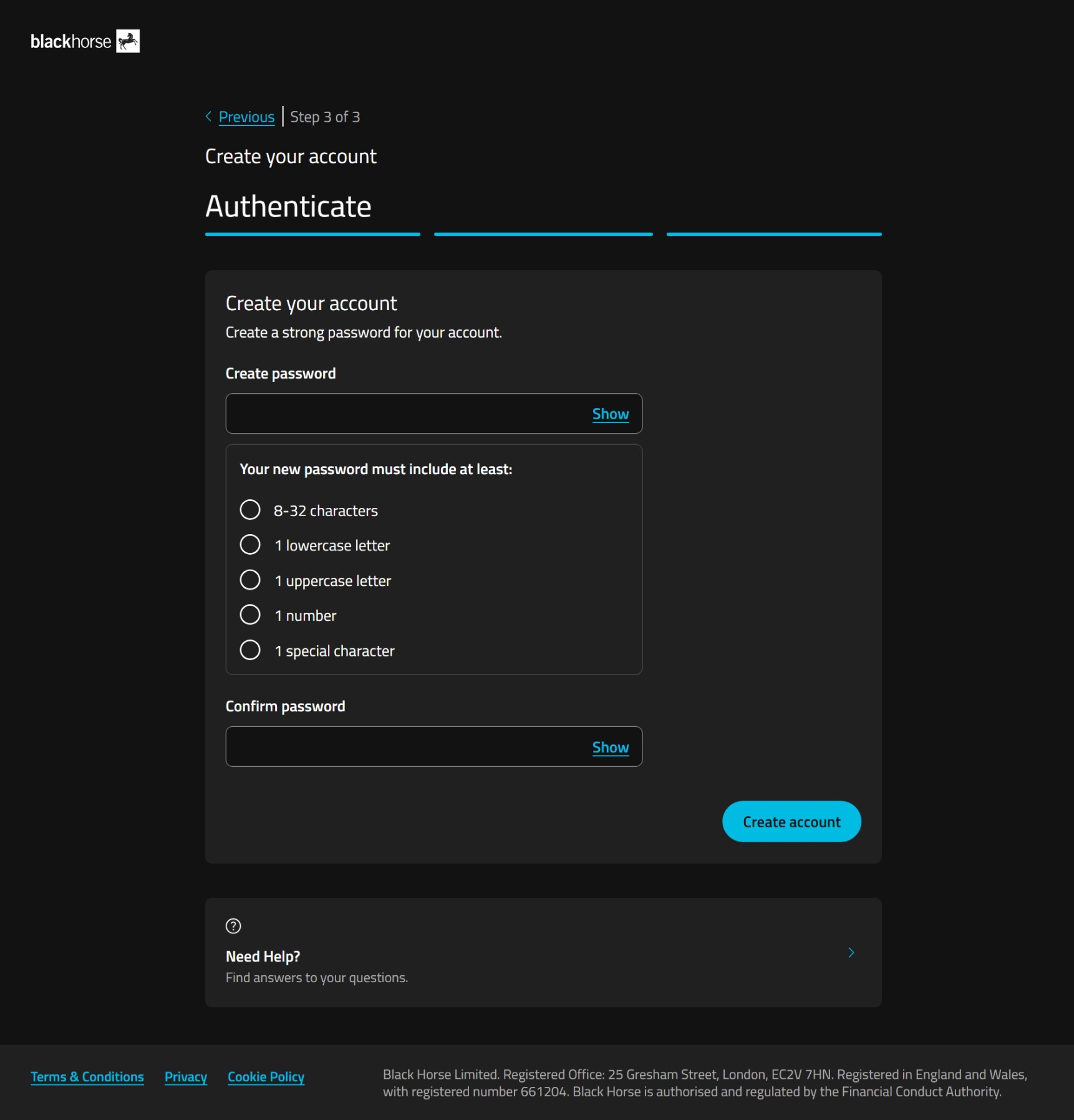
5. Choose a password for your online account.
Your password must include at least:
- 8-32 characters
- 1 lowercase letter
- 1 uppercase letter
- 1 number
- 1 special character.
Select create account.
If you're struggling to set your password, you could use a password generator, or try using 3 random, unconnected, words together with the other password requirements.
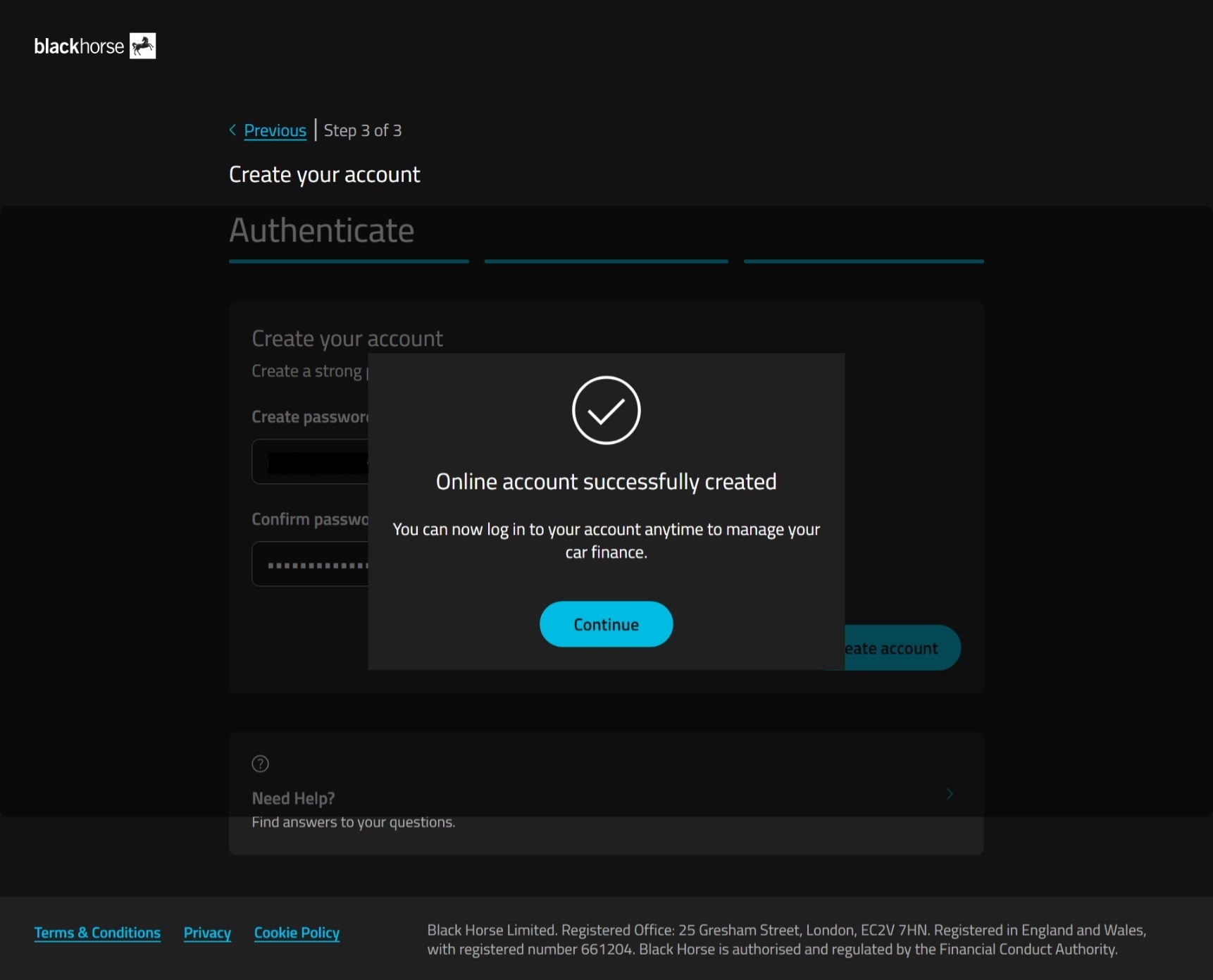
6. You've created your online account. Now you can log in with your email and password.
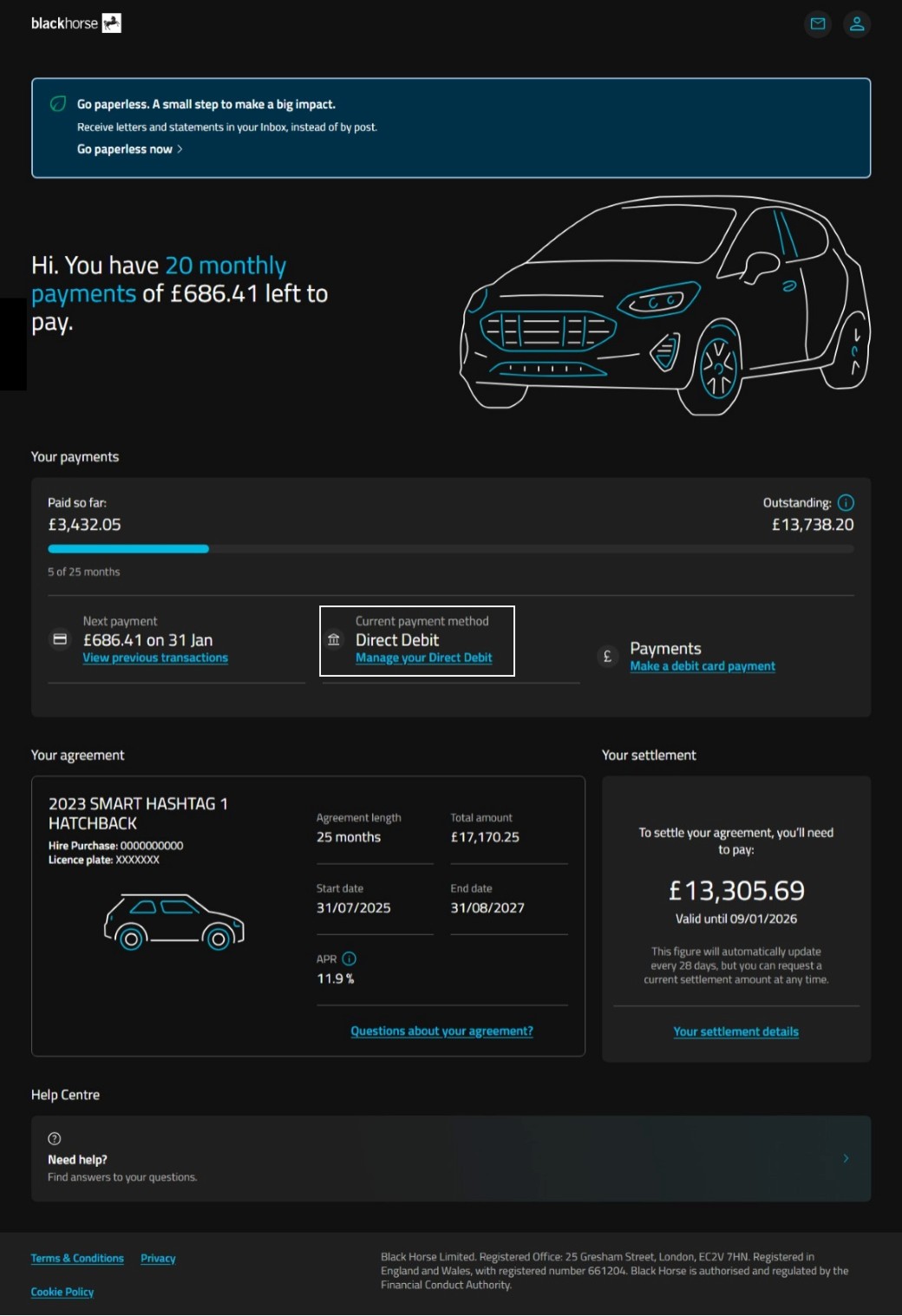
Step 2 - select manage your direct debit
You’ll find this under current payment method.
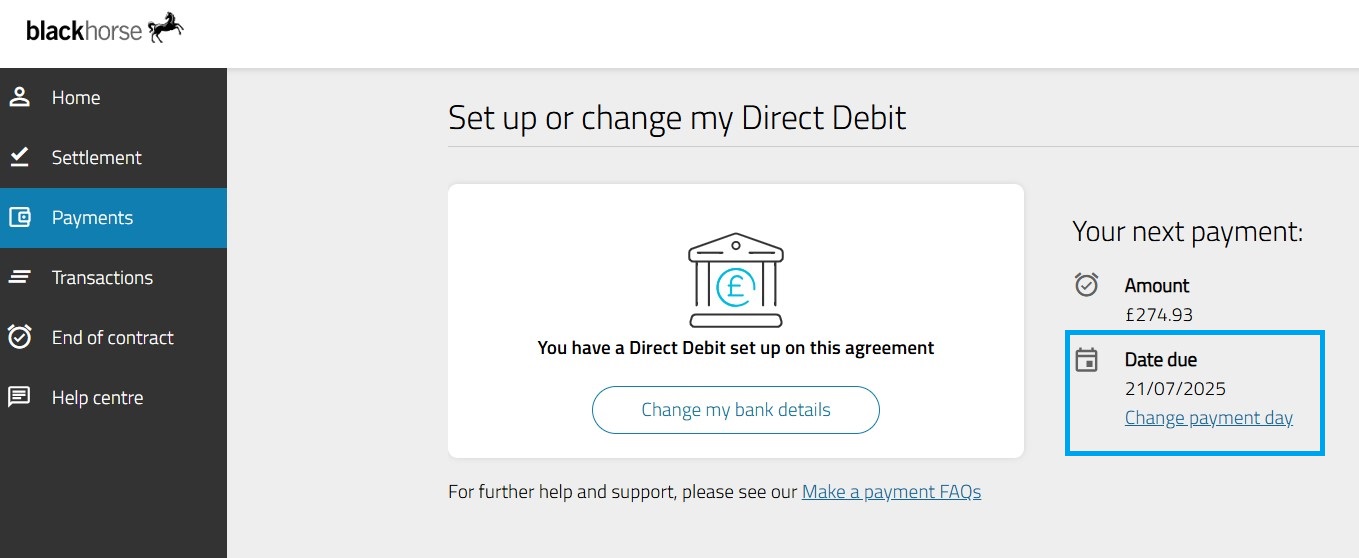
Step 3 - select change payment date
Select 'change payment day' on the right of the screen.
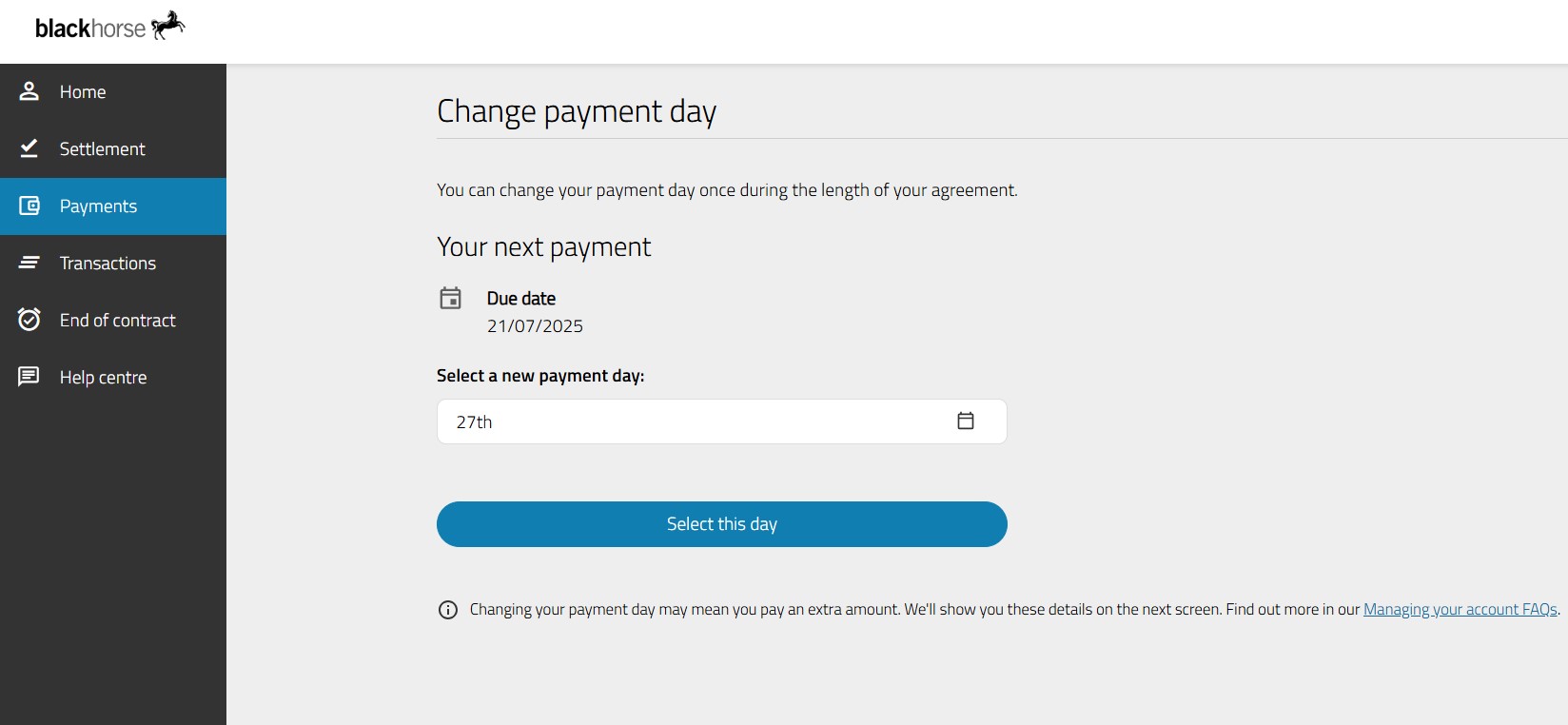
Step 4 - choose new payment date
Choose your new payment date in the calendar.
Select 'Select this day'.
Your payment date has been updated.
Still need help?
If you've not found what you need, you can get in touch.